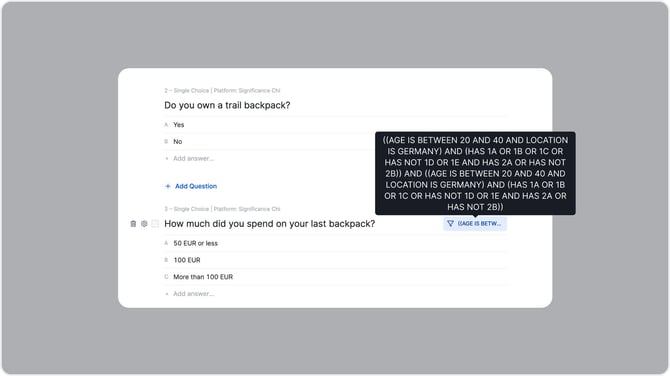
You can use three kinds of filters when programming surveys on the platform:
- Demographics
- HAS/HAS NOT
- AND/OR
To set up a filter, click the funnel icon on the right-hand side of a question or answer option. A "New filter" window will open.
Demographics
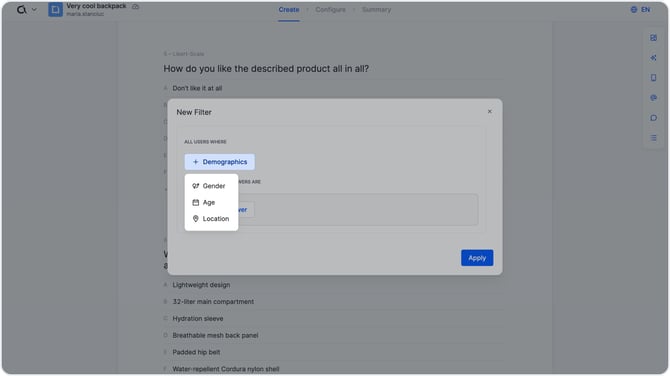
Demographic filters restrict a question to respondents who meet specific demographic criteria, such as age, gender, or location. To add one, click "+ Demographics" in the "All users where" section of the "New filter" window.
Example
Example You want to show a question only to respondents aged 20 to 40 who live in Germany. Select the "Age" demographic filter and enter the age range. Then add a "Location" filter and select "Germany" from the dropdown.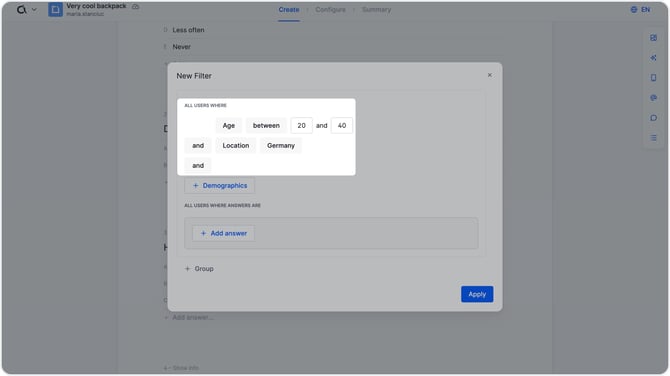
HAS / HAS NOT Filters
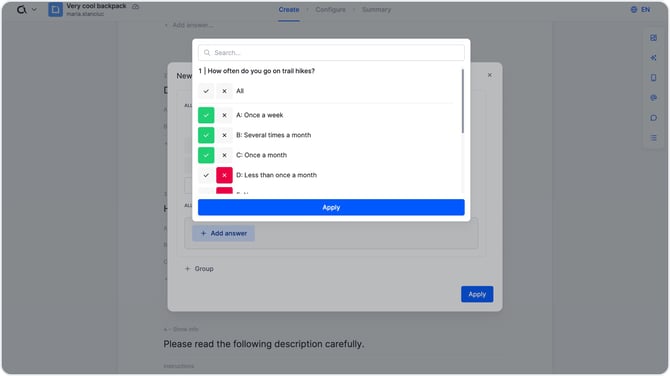
HAS and HAS NOT filters let you include or exclude respondents based on how they answered a previous question. A HAS filter includes respondents who selected a specific answer, while a HAS NOT filter excludes them. In the interface, HAS filters are represented by a checkmark and HAS NOT filters by an X.
Example
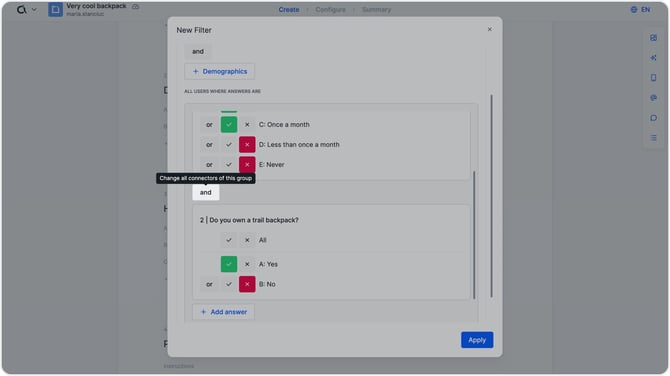
You want to continue the survey only with respondents who hike once a month or more. In the "New filter" window, click "Add answer" in the "All users where answers are" section. A list of previous questions appears. Apply a HAS filter to the answers you want to include and a HAS NOT filter to the answers you want to exclude. Click "Apply."
AND/OR Filters
AND/OR logic lets you combine multiple filter conditions.
- AND requires respondents to meet all specified conditions.
- OR requires respondents to meet at least one of the specified conditions.
Example
You want to continue the survey only with respondents who hike frequently and also own a backpack. Click "Add answer" in the same section to select the next filter condition. A list of the remaining previous questions appears. Apply a HAS filter to "Yes" and a HAS NOT filter to "No."
Click "Apply." The new filter is now connected to the previous one. To switch between AND and OR logic, click the connector tile between the two conditions.
Groups
Groups let you nest multiple conditions together to build more complex filter logic. Each group can contain its own AND/OR conditions, and groups themselves can be connected using AND/OR logic.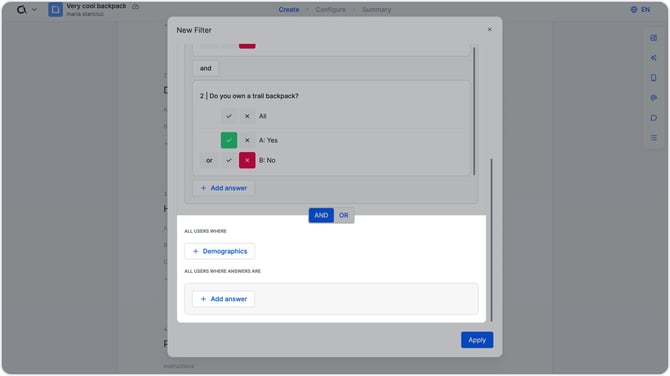
Example
In addition to the previous filter, you also want to reach respondents who live in France, hike at least once a week, and own a backpack. In the "New filter" window, click "+ Group." A new section appears below the existing group. Use the AND/OR toggle to define how the two groups should be connected. In this example, we want to reach respondents who meet either group's criteria, so we will use an OR connector.
Add a "Location" demographic filter with France as the value. Then apply the same HAS/HAS NOT filters as in the previous group. Click "Apply." The full filter logic is now displayed next to the question.