
Once you have selected a question type and written your question, you can configure the answer options in detail. The options available will vary slightly depending on the question type.
Adding and Managing Answers
Type each answer option directly into the answer fields. To add more options, click "+ Add Answer." You can also add a free text answer option by clicking "+ Add Freetext Answer." This allows respondents to type in their own response if none of the provided options apply to them.
Each answer option has a settings menu accessible by clicking the cogwheel icon next to it.
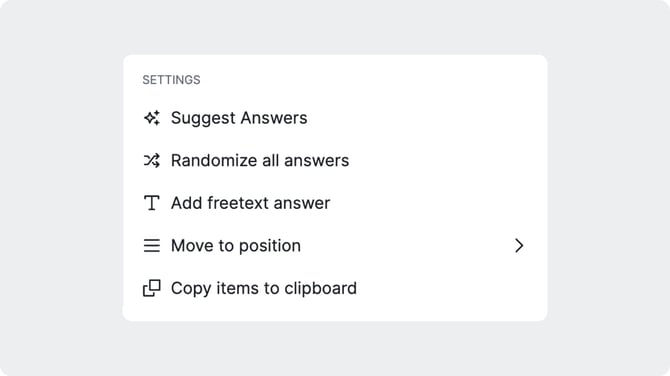
From this menu you can:
- Suggest Answers to generate additional AI-powered answer options.
- Move to Position to move the answer to a specific position in the list without dragging.
- Copy Items to Clipboard to copy all answer options for use elsewhere.
- Reverse Answer Options to flip the order of all answers in the list.
- Change Scale to switch to a different scale type. This option is available for scale-based question types such as Matrix and Likert, and gives you access to a range of pre-built scales including Consideration, Likability, Approval, Credibility, Comprehensibility, Importance, Fit, Probability, Approval/Denial, and Applicability.