
Navigating to your projects
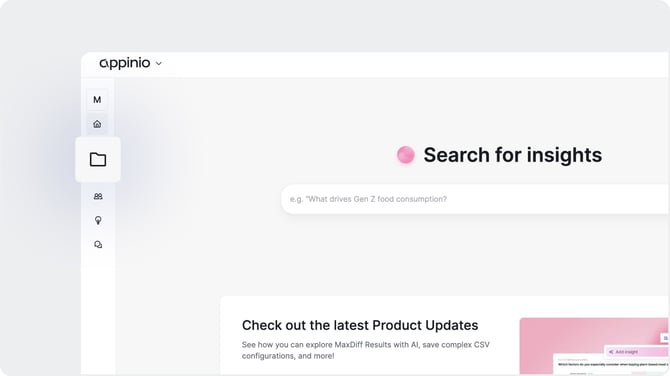
After logging in, you will land on the Appinio home page. To access your projects, click the Folder icon in the left-hand toolbar. This takes you to your projects page, where you can view existing projects or create new ones.
Creating a new survey
To create a new survey, click the blue "+ Create Survey" button in the top right corner of the projects page.
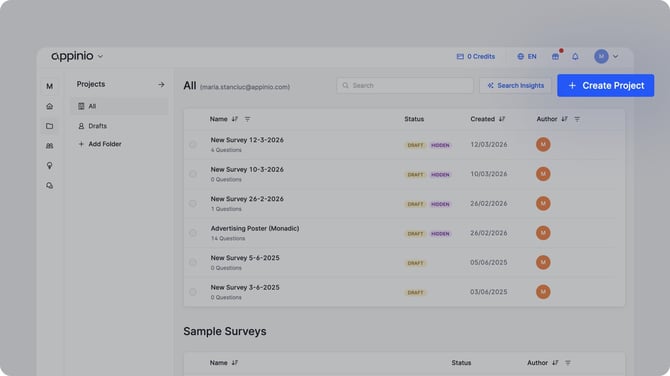
The option to select from the three survey options appears. In this example, we're going to use the Standard survey.
Working with templates
When you select Standard Survey, you are prompted to either start from scratch or use a template. Appinio offers a library of pre-built survey templates designed around common research methods, and you can also access templates created by your own team.
Browsing Templates
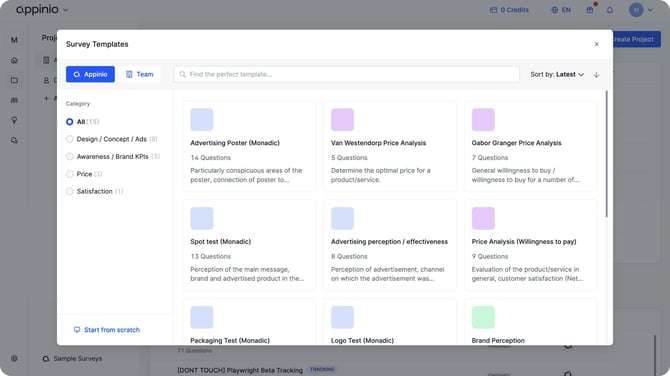
Templates are organized by category on the left-hand side of the template window. Available categories include Design, Concept and Ads, Awareness and Brand KPIs, Price, and Satisfaction, among others. Click a category to filter the list, or use the search bar to find a specific template by name.
Appinio Templates vs. Team Templates
Use the tabs at the top of the template window to switch between Appinio's own templates and those created by your team. To access a team member's templates, they must first add you to their workspace.
Selecting a Template
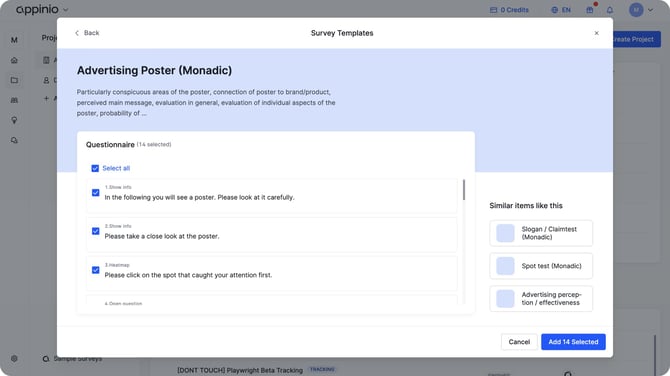
Click on any template to see a preview of its questions. Each template comes with a pre-written set of questions suited to the selected research method. You can edit any question after loading the template, and you can mix and match questions from different templates to build a questionnaire that fits your specific needs.
 /
/
Starting from Scratch
If you prefer not to use a template, click "Start from scratch" at the bottom of the template window to open a blank survey editor.