
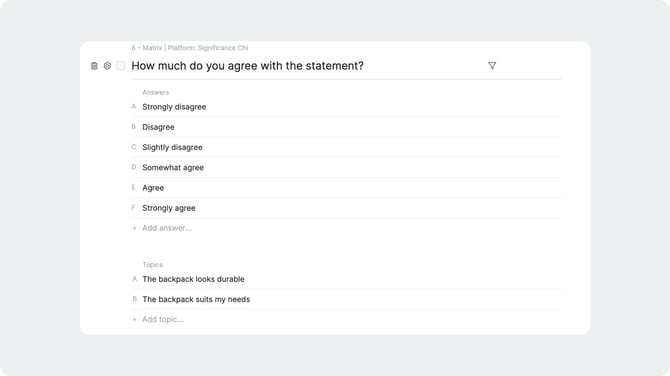
A Matrix question lets respondents evaluate multiple topics using the same set of answer options. It is best used when you want to measure opinions or attitudes across several statements in a single question.
Setting Up Answers
The answers section contains a set of predefined response options that apply to every topic in the question. For example, a scale ranging from "Strongly disagree" to "Strongly agree." You can edit these options to suit your needs.
Use the icons next to the answers section to manage your scale:
- Copy: copies all answer options to your clipboard.
- Flip: reverses the order of the scale, for example changing it from "Strongly disagree to Strongly agree" to "Strongly agree to Strongly disagree."
- Change Scale:lets you switch to a different scale type without rebuilding the question from scratch.
Setting Up Topics
Topics are the statements or items you want respondents to evaluate. Add them in the Topics section below the answers. You can add up to 11 topics per question.
To attach an image to a topic, use the image upload area in the Images section. Images must be in .jpg or .png format and no larger than 1.5MB.
Using AI
- Click "Suggest Answers" to have AI generate additional answer options based on those already entered.
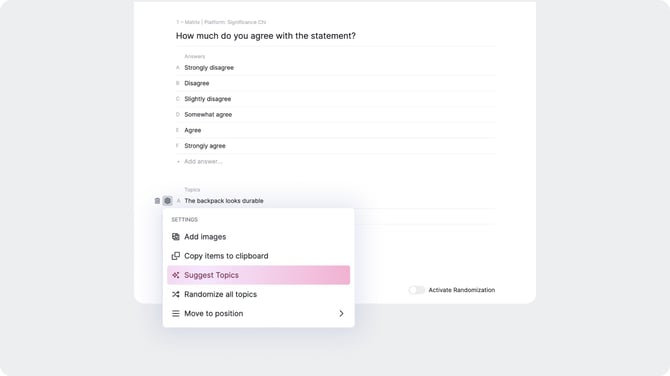
- Click "Suggest Topics" to have AI generate additional topics based on those already entered.
Settings
- Check "Randomize" to display topics in a random order for each respondent.
- Check "Multiple answers possible" to allow respondents to select more than one answer per topic.