
Adding a question
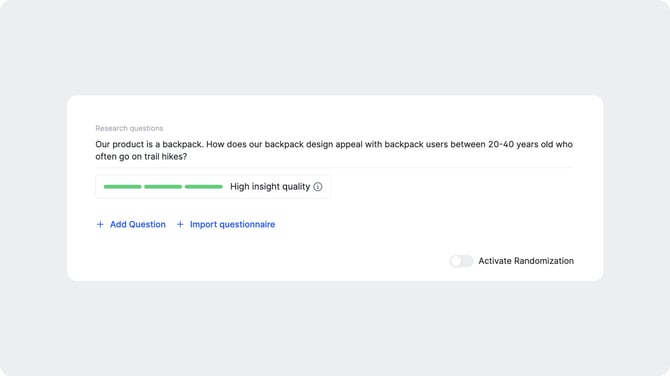
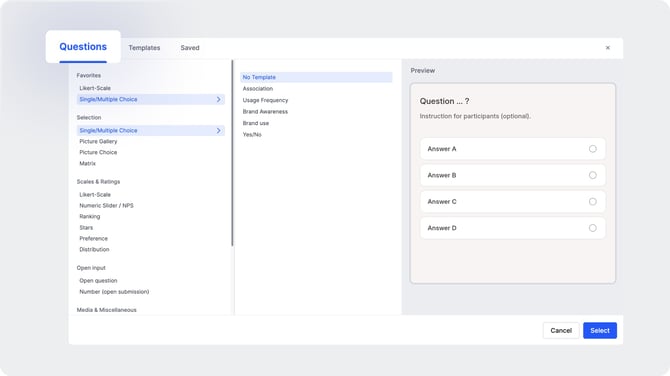
Click the "+ Add Question" button in the survey interface. A pop-up window opens with three tabs: Questions, Templates, and Saved.
- Questions lets you select a question type and, where applicable, choose from pre-written answer options. Select "No Template" if you prefer to write your own answers. Click "Select" to add the question to your survey.
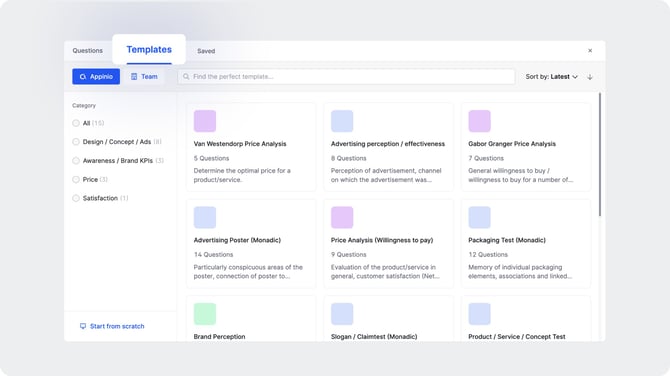
- Templates lets you pull in full survey templates, as described in the Creating a Standard Survey article.
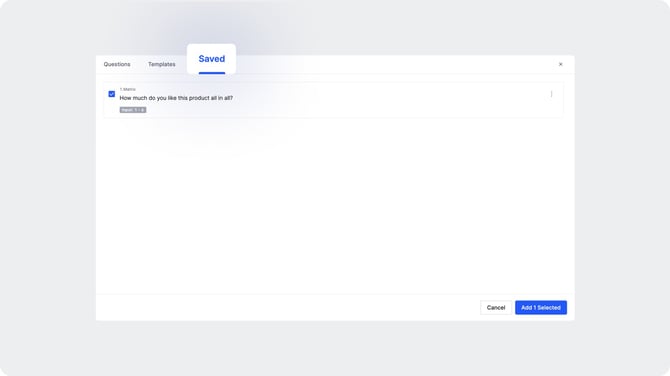
- Saved gives you access to any questions you have previously saved, including Appinio templates, company templates, and your personal favorites.
Writing or editing your question
Type your question into the text field. Alternatively, if you used a pre-defined question, you can edit its text here. Use the formatting toolbar above the field to apply bold, italic, or underline styling to emphasize key parts of the question.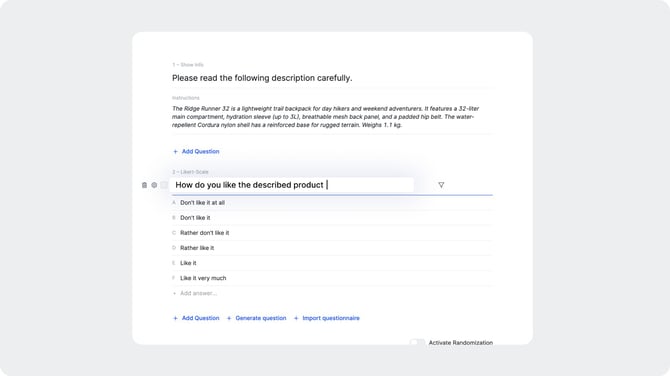
Once your question is set up, you can access additional options such as adding images, switching question types, or previewing the question in the app. For a full overview, refer to the Question Settings article.